Overview
MiOffice AI Video Enhancer doubles or quadruples video resolution with optional noise reduction for clips up to 25 MB that stay within 60 seconds, 900 frames, and 60 fps. Sign in to upload an MP4, WebM, MKV, AVI, or MOV file, inspect footage with the timeline controls, and download an H.264 MP4. When your source clip includes audio, the worker re-encodes the first audio track to AAC and attaches it to the final download.
The decoder inspects readable video streams across supported containers and normalizes frames to 8-bit YUV 4:2:0 before enhancement. Background workers scale the video at your chosen 2× or 4× multiplier and apply noise reduction when selected. Before delivering the H.264 MP4 download, workers verify that total duration, frame count, and frame rate match the source clip, re-encoding the first audio track to AAC when present.
When to use
- Upscale standard-definition or 720p clips to 1080p or 4K to fit modern high-resolution displays for short product demos or social sharing.
- Suppress analog grain or low-light sensor noise on short camera clips by pairing resolution boost with optional noise reduction.
- Enhance short digitized legacy clips or 2D animation tests under 60 seconds while preserving exact frame timing, duration, and frame rate.
How to use
Sign in and select one MP4, WebM, MKV, AVI, or MOV file within the 25 MB limit. Make sure the clip stays within 60 seconds, 900 frames, and 60 fps, with even dimensions that do not exceed 3,840 × 2,160 pixels.
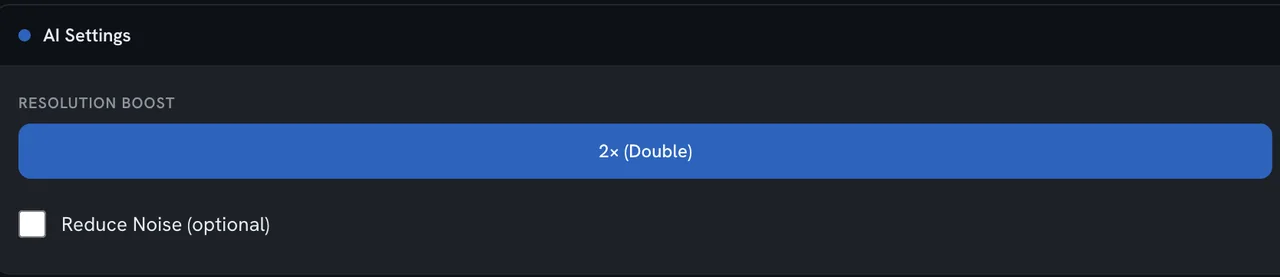
Inspect key moments in the preview using playback controls and timeline scrubbing. Under Resolution Boost, choose 2× (Double) or 4× (Quadruple), confirming that the multiplied dimensions stay within 3,840 × 2,160 pixels.
Turn on Reduce Noise (optional) if your footage has distracting sensor grain or compression noise. Leave it off to preserve source textures.
Select Process to upload and enhance your clip. Keep the browser page open while the file uploads. Once background processing starts, track progress under Tasks or notifications.
Download the completed MP4 when processing finishes. Check moving edges, faces, fine textures, and small lettering against the original at your target viewing size. Keep the original file and use whichever version looks clearer during playback.
Settings reference
| Setting | Options | Default |
|---|---|---|
| Resolution Boost | 2: 2× (Double): double width and height. A 960 × 540 clip becomes 1920 × 1080. 4: 4× (Quadruple): quadruple width and height. A 960 × 540 clip becomes 3840 × 2160. | 2 |
| Reduce Noise (optional) | Yes / No | No |
Formats & limits
| Detail | Requirement |
|---|---|
| Input formats | MP4, WebM, MKV, AVI, MOV |
| Output formats | MP4 |
| Input codecs | Decodable video in the accepted containers; the decoder checks the actual stream rather than accepting an extension alone. |
| Output codecs | H.264 video in MP4; the first source audio track is re-encoded to AAC when present. |
| Bit depth | Input video is normalized to 8-bit YUV 4:2:0 before enhancement. |
| Maximum duration (seconds) | 60 |
| Maximum frame count | 900 |
| Maximum frame rate (fps) | 60 |
| Dimensions | Even width and height; input and scaled output each at most 8,294,400 pixels (3840 × 2160). |
Access & cost
| Detail | Requirement |
|---|---|
| Sign-in required | Yes |
| Internet connection required | Yes |
| Maximum file size | 25 MB |
| Limit scope | One file per enhancement. The upload control labels its limit 25 MB (26,214,400 bytes). |
| Plan limits | The same technical input and output limits apply to this enhancement workflow. |
Examples & use cases
Product educator preparing tutorial clips
Upscaling a 540p Screen Demo to 1080p
A 960 × 540 screen capture at 30 fps (20 seconds, 600 frames) needs to display cleanly on a standard 1080p video player.
MP4 to MP4
- Resolution Boost:
- 2
- Reduce Noise (optional):
- No
- Set Resolution Boost to 2× (Double) to scale the 960 × 540 dimensions to 1920 × 1080.
- Leave Reduce Noise off to keep interface edges and text sharp.
Expected outcome
A 1920 × 1080 H.264 MP4 export matching the original 20-second duration and 600 frames, with the first audio track re-encoded to AAC when audio is present.
Archivist restoring short family transfers
Quadrupling Resolution and Denoising a Digitized Archive Clip
A 640 × 360 digitized clip at 24 fps (15 seconds, 360 frames) shows heavy analog sensor noise and needs a higher-resolution deliverable.
MOV to MP4
- Resolution Boost:
- 4
- Reduce Noise (optional):
- Yes
- Set Resolution Boost to 4× (Quadruple) to scale the 640 × 360 clip to 2560 × 1440, staying within the 3840 × 2160 pixel limit.
- Turn on Reduce Noise (optional) to smooth analog film grain during enhancement.
Expected outcome
A 2560 × 1440 H.264 MP4 file with noise reduction applied, verified 15-second duration, and re-encoded AAC audio when audio is present.
More ways to use it
- Social media creator: A 10-second 960 × 540 smartphone recording at 30 fps shot in dim lighting suffers from visible sensor noise. A 1920 × 1080 MP4 deliverable with noise reduction applied, duration verified against the original 10-second source, and the first audio track re-encoded to AAC when audio is present. Resolution Boost: 2, Reduce Noise (optional): Yes.
- Independent animator: A 640 × 480 hand-drawn animation test at 24 fps (12 seconds, 288 frames) requires higher resolution for a web portfolio without altering timing. A 1280 × 960 H.264 MP4 export with an identical 288-frame count, verified 24 fps frame rate, matching 12-second duration, and re-encoded AAC audio if an audio track was present. Resolution Boost: 2, Reduce Noise (optional): No.
Troubleshooting
The tool rejects a 1920 × 1080 video when attempting to process with 4× enhancement.
Try this: Change Resolution Boost to 2× (Double).
What to expect: The export dimensions adjust to 3840 × 2160, staying within the 8,294,400 pixel ceiling so processing can proceed.
An upload is rejected during pre-processing validation because the total frame count exceeds 900 frames.
Try this: Trim the video in a trimming tool so its total frame count remains at or below 900 frames, then re-upload the shorter clip.
What to expect: The shorter file conforms to the 900-frame ceiling (for example, 30 seconds at 30 fps or 15 seconds at 60 fps) and passes upload validation.
Privacy
Video enhancement uploads your clip for online processing. Completed results may remain available in Tasks for later download. See the Privacy Policy for current retention details. Uploaded files are not used to train AI models.
Frequently asked questions
Can I upscale a 1080p video to 4K?
Yes. A 1920 × 1080 video can be upscaled to 4K (3840 × 2160) by selecting 2× (Double) under Resolution Boost. Selecting 4× on a 1080p clip is rejected because multiplying both dimensions yields 7680 × 4320, which exceeds the 3840 × 2160 pixel ceiling.
Can I adjust enhancement and noise reduction settings?
Yes. You can select your scaling factor under Resolution Boost (2× or 4×) and toggle Reduce Noise (optional) on or off depending on whether your video requires noise suppression.
Can I enhance old home videos and digitized recordings?
Yes. You can upload digitized recordings in MP4, WebM, MKV, AVI, or MOV containers up to 25 MB that meet the 60-second, 900-frame, and 60 fps limits with even dimensions. While upscaling increases frame dimensions and optional noise reduction reduces grain, enhancement cannot synthesize details that were never captured, so check faces and fine textures at your intended viewing size.
Does AI video enhancement stabilize camera shake or boost frame rates?
No. The tool performs spatial upscaling and offers optional noise reduction. It does not stabilize camera movement or boost frame rates; duration, frame count, and frame rate match your source file.
Does a 4× export recover every missing detail?
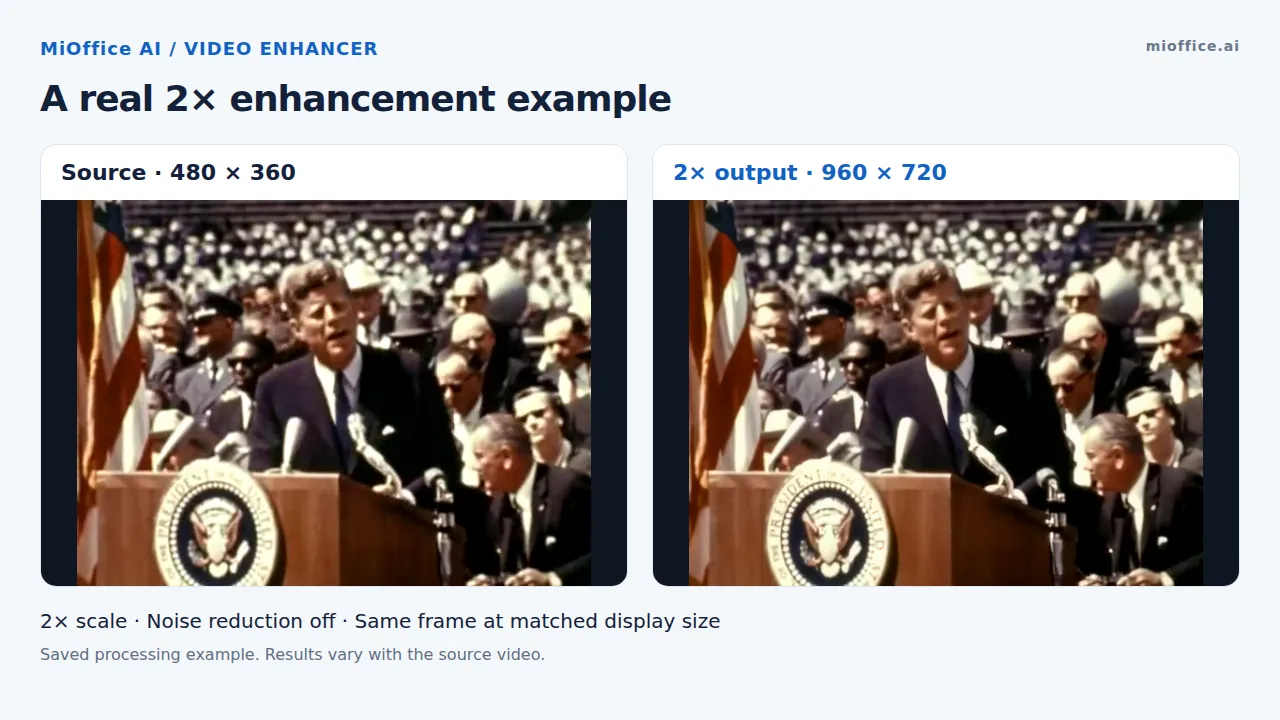
No. Upscaling adds pixels to enlarge your video, but it cannot guarantee recovery of detail the original recording never captured. Inspect fine textures, moving edges, faces, and small lettering at your target viewing size before using the export.
Does enhancement process files locally or in the cloud?
Enhancement processes uploaded clips online on cloud servers rather than on your local device. Background workers handle decoding, scaling, and re-encoding, and update your task status when the download is ready.
How are uploaded files handled for privacy and AI training?
Your video is uploaded for online processing. Completed results may remain available in Tasks for later download; see the Privacy Policy for current retention details. Uploaded files are not used to train AI models.
How does this tool enhance video quality?
The tool normalizes input video to 8-bit YUV 4:2:0, doubles or quadruples frame dimensions through AI upscaling, applies optional noise reduction, and exports an H.264 MP4 while verifying matching duration, frame rate, and frame count.
Should I increase resolution when the video is already blurry?
A larger frame does not necessarily contain more reliable detail. When a source is blurry, inspect a short section at the size you plan to use, watching for artificial texture or sharpening halos. Keep the original and select the version that looks clearer in normal playback.
What are the file size, duration, and frame count limits?
Files must be 25 MB or smaller and meet three limits simultaneously: up to 60 seconds, at most 900 frames, and no more than 60 fps. Because of the frame cap, a 60 fps clip cannot exceed 15 seconds, and a 30 fps clip cannot exceed 30 seconds.
What happens to the audio track during video enhancement?
When the source contains audio, the first audio track is re-encoded to AAC and attached to the exported MP4. This is re-encoding rather than a bit-for-bit audio copy.
What video file formats and codecs can I upload?
You can upload MP4, WebM, MKV, AVI, or MOV files. The decoder verifies readable video streams directly rather than relying solely on the file extension.