Overview
Shrink large video files so they are easier to email, upload, and stream. Compress Video accepts one MP4, WebM, MOV, AVI, or MKV file up to 500 MB and can create an MP4 or WebM copy aimed at reducing file size while leaving your original recording untouched. Inspect your clip and preview edits across the Source and Program viewers, balance file size and picture detail using Constant Rate Factor (CRF) quality and resolution controls, and check playback in your downloaded file before sharing.
The tool re-encodes your video stream using your selected format, quality level, and dimensions. Choosing MP4 packages H.264 video with AAC audio, while Web Video outputs a WebM file using VP9 video and Opus audio when sound is present. Compression strength is governed by the Quality (CRF) slider, ranging from 18 to 35: lower CRF values preserve fine textures and motion, while higher CRF values compress more aggressively to shrink the file. Processing runs locally on your device when supported by your browser and hardware, or online when file size or device routing requires cloud servers; online processing requires sign-in and an active internet connection.
When to use
- An email client or messaging app rejects your video because it exceeds a strict attachment limit, such as 25 MB.
- You need to shrink large MP4, MOV, or MKV screen recordings before attaching them to helpdesk tickets, team channels, or shared storage.
- You want to create a lighter web copy of a product demo to check playback and loading on mobile connections.
- You want to downscale high-resolution 4K or 1440p footage to 1080p or 720p while inspecting editor adjustments in the Program viewer before processing.
How to use
Select one MP4, WebM, MOV, AVI, or MKV video within the 500 MB upload limit to open it in the editor.
Inspect the clip in the Source and Program viewers. Under Output, choose MP4 or Web Video, then set your desired Quality (CRF) and Resolution.
Adjust optional color, denoise, sharpen, speed, rotation, or text overlay controls only if your project requires those adjustments.
Click Process Compress Video, checking the processing mode and access prompts displayed before conversion begins.
Download the processed video and play it. Check fine text, motion detail, and total file size against your destination limit before sending, and retain your original file.

Settings reference
| Setting | Options | Default |
|---|---|---|
| Brightness | -1.0 – 1.0 | 0 |
| Contrast | 0.0 – 2.0 | 1 |
| Saturation | 0.0 – 3.0 | 1 |
| Gamma | 0.1 – 3.0 | 1 |
| Hue | -180.0 – 180.0 | 0 |
| Temp | -100.0 – 100.0 | 0 |
| Shadows: red | -1.0 – 1.0 | 0 |
| Shadows: green | -1.0 – 1.0 | 0 |
| Shadows: blue | -1.0 – 1.0 | 0 |
| Midtones: red | -1.0 – 1.0 | 0 |
| Midtones: green | -1.0 – 1.0 | 0 |
| Midtones: blue | -1.0 – 1.0 | 0 |
| Highlights: red | -1.0 – 1.0 | 0 |
| Highlights: green | -1.0 – 1.0 | 0 |
| Highlights: blue | -1.0 – 1.0 | 0 |
| Sharpen | 0.0 – 3.0 | 0 |
| Vignette | 0.0 – 1.0 | 0 |
| Film Grain | 0.0 – 50.0 | 0 |
| Denoise | 0.0 – 25.0 | 0 |
| Speed | 0.25 – 4.0 | 1 |
| Barrel | -1.0 – 1.0 | 0 |
| Pincushion | -1.0 – 1.0 | 0 |
| Size | 12.0 – 72.0 | 24 |
| Curves preset | none: Leaves curves unchanged. vintage: Applies the Vintage curves preset. strong_contrast: Applies the Strong Contrast curves preset. lighter: Applies the Lighter curves preset. darker: Applies the Darker curves preset. increase_contrast: Applies the Increase Contrast curves preset. linear_contrast: Applies the Linear Contrast curves preset. medium_contrast: Applies the Medium Contrast curves preset. negative: Applies the Negative curves preset. cross_process: Applies the Cross Process curves preset. color_negative: Applies the Color Negative curves preset. | none |
| Rotation | 0: Keeps orientation unchanged. 90: Rotates 90 degrees clockwise. 180: Rotates 180 degrees. 270: Rotates 90 degrees counterclockwise. | 0 |
| Flip horizontally | Yes / No | No |
| Flip vertically | Yes / No | No |
| Fade in | 0 – 10 | 0 |
| Fade out | 0 – 10 | 0 |
| Text overlay | Text | Empty |
| Text color | Text | #ffffff |
| Text position | top: Places text at the top. center: Centers text vertically. bottom: Places text at the bottom. | bottom |
| Output | mp4: MP4 with H.264 video and AAC audio when present. webm: Web Video: WebM with VP9 video and Opus audio when present. | mp4 |
| Quality (CRF) | 18 – 35 | 28 (Final compression process) |
| Resolution | original: Keeps source dimensions. 4k: Selects the 2160p resize target. 1440p: Selects the 1440p resize target. 1080p: Selects the 1080p resize target. 720p: Selects the 720p resize target. 480p: Selects the 480p resize target. | original |
Formats & limits
| Detail | Requirement |
|---|---|
| Input formats | MP4, WebM, MOV, AVI, MKV |
| Output formats | MP4, WebM |
| Input codecs | The selected processing engine must be able to decode the video and audio streams inside an accepted container. |
| Output codecs | MP4 uses H.264 video and AAC audio; Web Video uses WebM with VP9 video and Opus audio when audio is present. |
| Bit depth | Automatic. This workflow has no bit-depth selector and does not enforce one fixed output bit depth across its processing paths. |
Access & cost
| Detail | Requirement |
|---|---|
| Internet connection required | Yes |
| Maximum file size | 500 MB |
| Limit scope | One file. The current upload control displays 500 MB and enforces 524,288,000 bytes. |
| Plan limits | The current file selector applies the same size check before processing. |
| On-device | Guest access; On supported devices when on-device processing is available. |
| Online processing | Sign-in required; For online processing.; Internet connection required |
Examples & use cases
Technical support specialist
Compress 1080p MOV Screen Recording for Email
A 180 MB desktop walkthrough recorded in MOV format exceeds a 25 MB email attachment limit.
MOV to MP4
- Output:
- mp4
- Quality (CRF):
- 30
- Resolution:
- 720p
- Select the MOV recording in the file picker.
- Set Output to MP4, change Resolution to 720p, and adjust Quality (CRF) to 30.
- Click Process Compress Video and download the export.
Expected outcome
A compact MP4 video to check against email attachment limits while keeping interface labels and dialog text readable.
Content marketer
Reduce 4K Phone Video for Web Streaming
A high-bitrate 4K MP4 recorded on a phone buffers slowly on mobile web pages.
MP4 to WebM
- Output:
- webm
- Quality (CRF):
- 28
- Resolution:
- 1080p
- Select the 4K MP4 recording in Compress Video.
- Set Output to Web Video (WebM).
- Choose 1080p Resolution and keep the default CRF 28 quality value.
- Click Process Compress Video and download the finished file.
Expected outcome
A 1080p WebM file encoded with VP9 video and Opus audio to check for faster delivery and lower data transfer compared to the original 4K recording.
More ways to use it
- Community manager: Needs to share gameplay highlights in Discord without surpassing non-Nitro file upload caps. A lightweight MP4 export with clean action clarity to test against chat upload limits. Output: mp4, Quality (CRF): 31, Resolution: 720p.
- Course instructor: Lecture MKV recordings are too large for students on bandwidth-limited home internet plans. An MP4 video that cuts file size while preserving clear slide typography and diagrams. Output: mp4, Quality (CRF): 26, Resolution: 1080p.
Troubleshooting
The downloaded video still exceeds the target attachment or platform size limit.
Try this: Select 720p or 480p under Resolution, or increase the Quality (CRF) slider toward 32.
What to expect: Lowering resolution or using stronger compression can reduce file size. Compare the downloaded copy with the original and your destination limit; an already compressed video may not shrink enough.
Action scenes look blocky or small UI text becomes blurry after compression.
Try this: Lower Quality (CRF) toward 20-24 and keep Resolution at Original or 1080p.
What to expect: Lower CRF values dedicate more data to fine textures, sharp text edges, and fast motion.
If you only need part of the recording, trim unused footage before trying again. Judge the downloaded result at the size your audience will watch: check faces, fast motion and readable text, and listen for usable sound.
Privacy
Eligible on-device processing keeps the video in your browser. Online processing uploads your video, and completed results may remain available in Tasks for later download. See the Privacy Policy at https://mioffice.ai/privacy for current retention details. Uploaded files are not used to train AI models.
Frequently asked questions
How do I compress a video online?
Select one MP4, WebM, MOV, AVI, or MKV file up to 500 MB. In the workspace, choose MP4 or Web Video (WebM) under Output, pick your target resolution, and adjust the Quality (CRF) slider between 18 and 35. Click Process Compress Video, then preview and download your compressed copy.
Can I compress vertical videos for TikTok, Reels, or Discord?
Yes. You can use vertical MP4 or MOV clips. Leaving Resolution set to Original keeps the source dimensions. Check the downloaded picture quality, aspect ratio and file size against the destination requirements before sharing.
Can I make every video fit the same upload limit with one setting?
No. One setting cannot produce an identical file size across different videos. Clip duration, resolution, motion complexity, and original bitrate all determine final output weight. If your downloaded file is still too large, choose a smaller resolution target such as 720p or 480p, or increase the Quality (CRF) setting toward 35 and inspect the result again.
How can I reduce video file size for email attachments?
Upload your recording and choose MP4 output. If the file exceeds your email provider's attachment limit, set Resolution to 720p or 480p and increase Quality (CRF) to between 28 and 32. After processing, check the downloaded file size against your destination's limit before attaching.
How do I compress a video without losing noticeable quality?
Compression re-encodes frames, but you can retain sharp visuals by choosing a Quality (CRF) value between 20 and 24 and keeping Resolution at Original or 1080p. Review the Program viewer preview and the downloaded video to verify that text, faces, and fast motion stay clean.
Is my uploaded video secure and private during compression?
When processing runs locally on a supported device, your video stays on your device. Online processing uploads your video. Completed results may remain available in Tasks for later download; see the Privacy Policy for current retention details. Uploaded files are not used to train AI models.
Is processing always local?
No. Processing runs locally on your device only when your browser, hardware capability, and task eligibility support it. When file sizes or device limits require server processing, conversion takes place via online cloud servers where internet access and account sign-in are required.
What does the Quality (CRF) slider do?
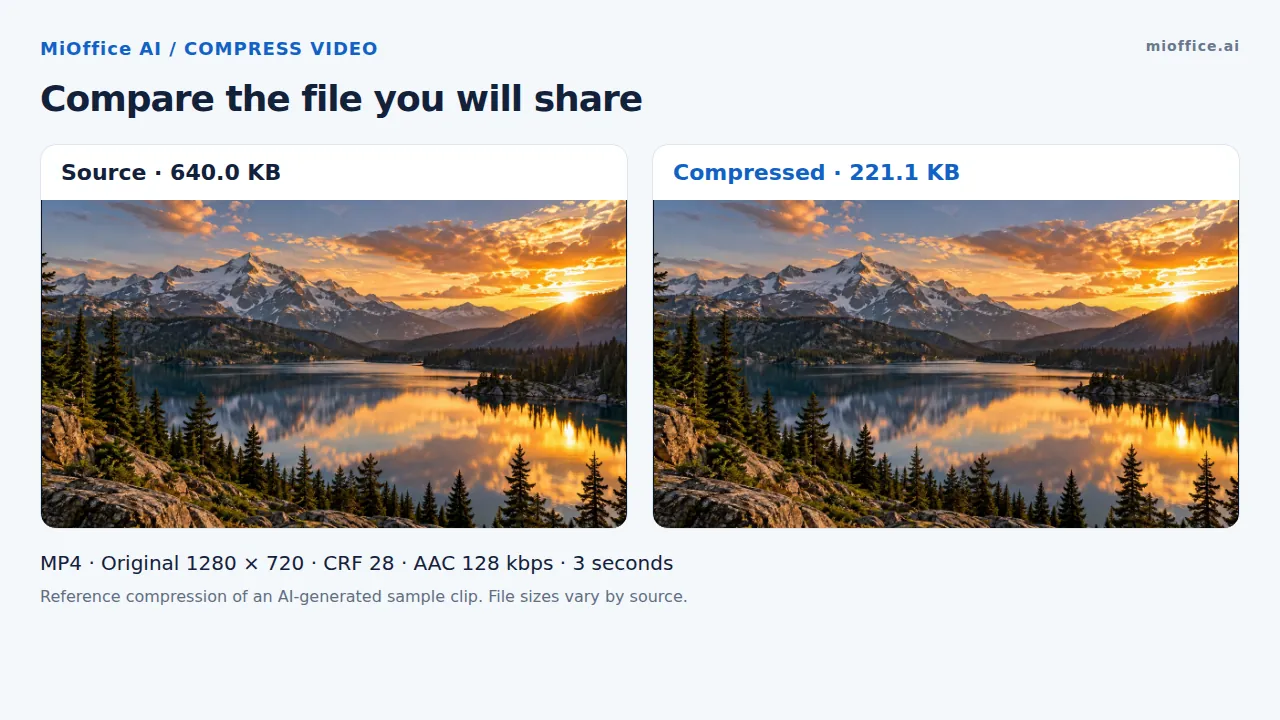
Constant Rate Factor (CRF) describes the tradeoff between visual detail and file size. The workspace slider ranges from 18 to 35: lower values favor detail and higher values favor smaller files. The default final compression process uses CRF 28. Compare the downloaded result with your source before sharing.
What should I do if a compressed video is still too large after using strong settings?
Increase the Quality (CRF) slider further toward 32–35, or set Resolution to 480p to compress frames more aggressively. If the file remains too large after applying those settings, the recording's overall runtime may be the issue; use Trim Video to cut unneeded sections before re-encoding so fewer frames are processed.
What video file formats can I compress?
Compress Video accepts MP4, WebM, MOV, AVI, and MKV files up to 500 MB. You can export your compressed video as an MP4 (encoded with H.264 video and AAC audio) or as Web Video (WebM encoded with VP9 video and Opus audio).