Overview
Use this converter to prepare an SDR version of HDR footage for a client, a web review or a standard display.
HDR carries more brightness and color information than an SDR screen can show. Tone mapping fits that information into SDR's range; the copy cannot retain the HDR original's full brightness and color range.
When to use
- A phone or camera recording looks faded in a player that does not handle HDR correctly.
- You need an SDR deliverable from an HDR file for a client or a standard playback workflow.
How to use
Add one HDR MP4, MOV, MKV or WebM file up to 2 GB with readable HDR metadata. Continue as a guest on supported devices, or sign in for online processing.
Keep MP4 selected under Output, then click Process HDR to SDR.
Keep the page open during on-device conversion, or while your file uploads for online processing.
For online processing, wait for the background-processing message. You can then use Tasks to follow progress if you leave the page.
Click Download when the result is ready.
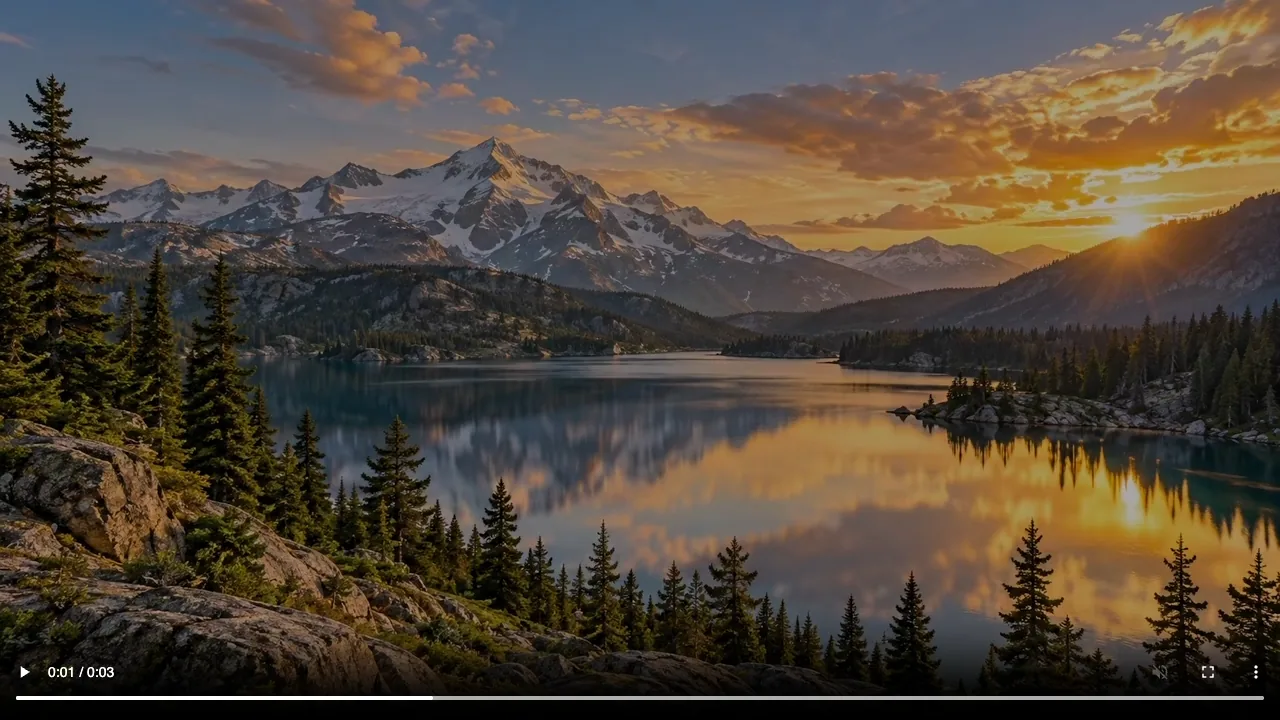
Check the downloaded MP4 on the intended SDR display: highlights, skin tones, shadows and audio. Keep the HDR original separately.
Leave the additional color and effects controls unchanged for your first conversion so you can judge the tone mapping on its own.
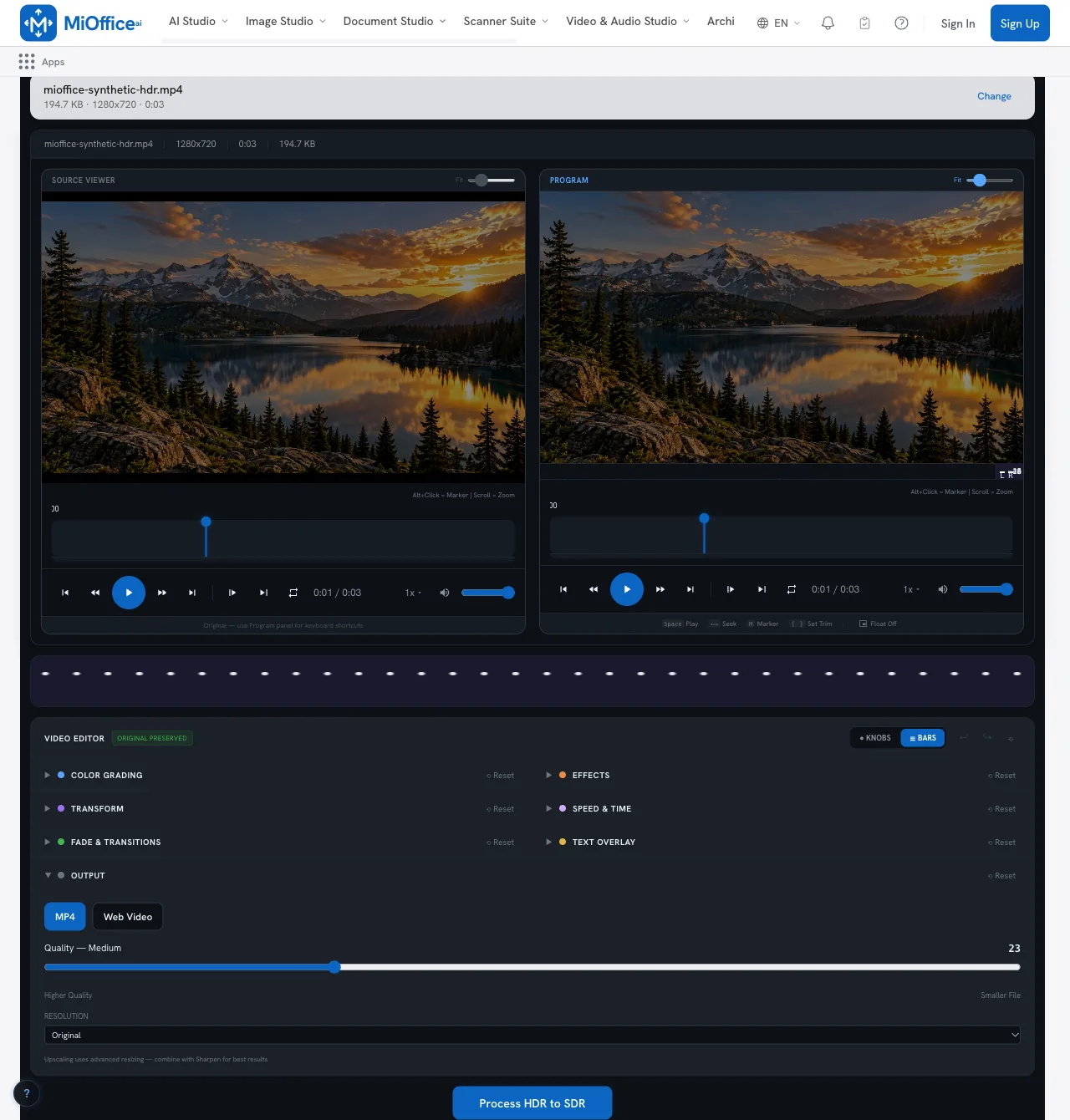
Settings reference
| Setting | Options | Default |
|---|---|---|
| Output | MP4 Web Video | MP4 |
Formats & limits
| Detail | Requirement |
|---|---|
| Input formats | MP4, MOV, MKV, WebM |
| Output formats | MP4, Web Video |
| Technical requirements | Recognizable HDR metadata is required, A supported extension does not guarantee codec support, Already-SDR video is rejected |
Access & cost
| Detail | Requirement |
|---|---|
| Credits | For online processing, check the credit requirement shown before starting. |
| Maximum file size | 2 GB |
| Limit scope | HDR to SDR; on-device availability depends on your device. |
| On-device | Guest access; On supported devices |
| Online processing | Sign-in required; Internet connection required |
Examples & use cases
Mobile videographer
Phone footage for a client
An HDR MOV recording looks flat on a client's standard office monitor.
MOV to MP4
- Output:
- MP4
- Choose MP4 for the SDR delivery copy.
Expected outcome
An SDR MP4 is available to check on that monitor before delivery.
Web content editor
HDR master for web review
An editor needs a review copy of an HDR MKV master for a standard web player.
MKV to MP4
- Output:
- MP4
- Use the MKV master as the source and select MP4.
Expected outcome
The editor gets an SDR MP4 to review in the intended player.
More ways to use it
- Social media manager: An HDR social clip looks faded during standard playback. An SDR MP4 provides a separate version to assess before posting. Output: MP4.
- Independent filmmaker: A team needs to review an HDR WebM cut on SDR laptops. The filmmaker can supply an MP4 screener for that review. Output: MP4.
Troubleshooting
The upload is rejected
Try this: Check the input format, file size and HDR metadata. For an already-SDR file that only needs a different format, use a format converter.
What to expect: A file that meets the input requirements can proceed. Already-SDR footage remains outside this conversion workflow.
When can I leave the upload page?
Try this: Wait for the upload to finish and the background-processing message to appear.
What to expect: After that handoff, processing can be monitored in Tasks.
Privacy
On-device conversion runs on your device. Online conversion uploads your video for processing.
Frequently asked questions
What is tone mapping in this tool?
Tone mapping adjusts HDR brightness and color range to fit SDR. The SDR copy will not retain the full range of the HDR source.
Are an account and an active internet connection required?
On supported devices, you can convert as a guest. Online conversion needs sign-in and an internet connection.
Does this tool process files locally on my computer?
Yes, on supported devices. If you use online processing, your video is uploaded for conversion.
What input formats and file size limits apply?
Add one MP4, MOV, MKV or WebM video up to 2 GB.
Will any file with a supported extension work?
The extension alone is not enough: the codec and HDR metadata must also be readable.
What happens if I upload an SDR video?
A file recognized as already SDR is rejected. Use a format converter when you only need a different container.
Which output setting should I use for my initial conversion?
MP4 is the recommended starting output for this SDR-copy workflow.
What output options are available in the tool?
The interface offers MP4 and Web Video. This workflow uses MP4.
Can I leave the page while the video is uploading?
Stay on the page during upload. After the background-processing notice appears, you can follow the job in Tasks.
How do I download my converted SDR file?
Use Download when the file is ready. The page also attempts an automatic download.
How should I review the converted SDR result?
Use the downloaded MP4 on the intended SDR display, rather than judging only the preview. Follow the checklist in How to use.
Can this tool repair corrupted video files or wrong color tags?
This workflow converts HDR for SDR playback; it does not repair damaged footage or incorrect color metadata.
Can I convert an HDR MOV recording?
MOV is accepted, but the codec and HDR metadata still need to be readable. The file must be within the 2 GB limit. Check the converted result on an SDR display.
Can I do this without uploading the video?
On supported devices, guest access uses on-device processing. If online processing is needed, sign in and review the credit requirement before uploading your video.
Will the converted file be smaller?
A smaller file is not guaranteed. Tone mapping and re-encoding can change the size; this workflow is for SDR viewing rather than a specific size target.
Should I keep the HDR original after making an SDR copy?
Yes. SDR is useful for destinations that do not display HDR as intended, but the original retains the source information for future editing. Compare the SDR copy on the screen or service where it will be viewed.