Overview
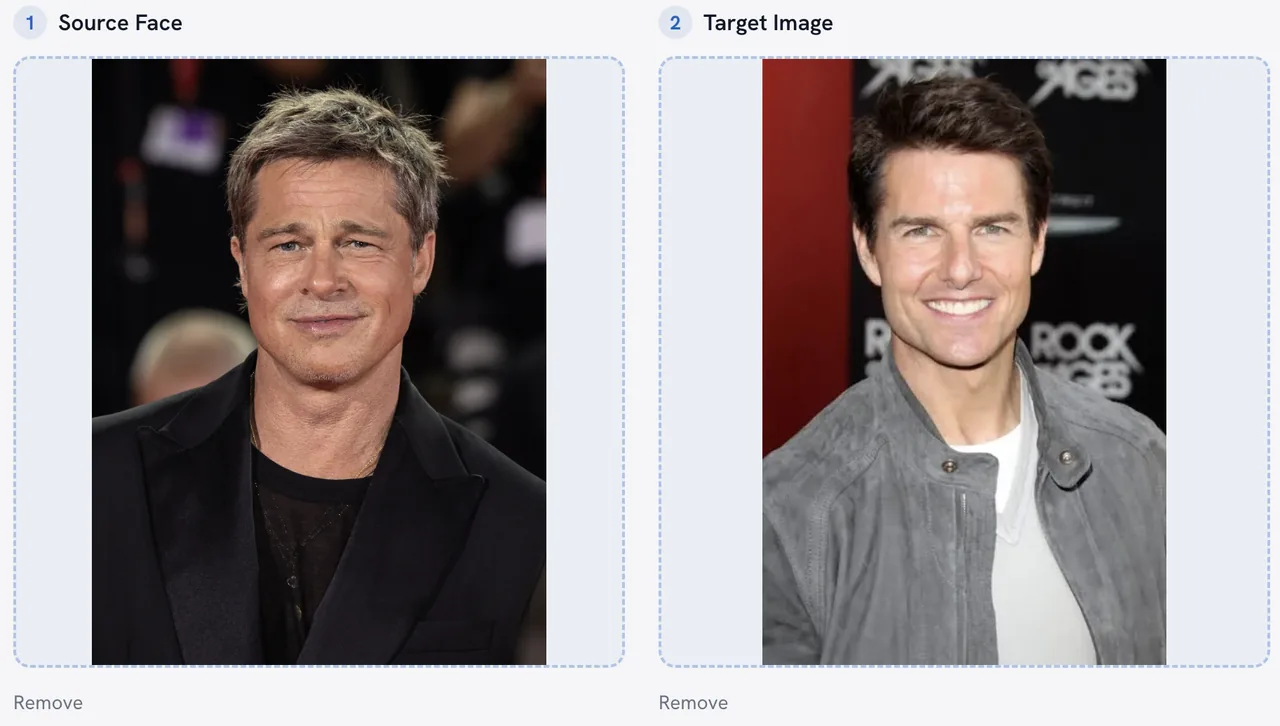
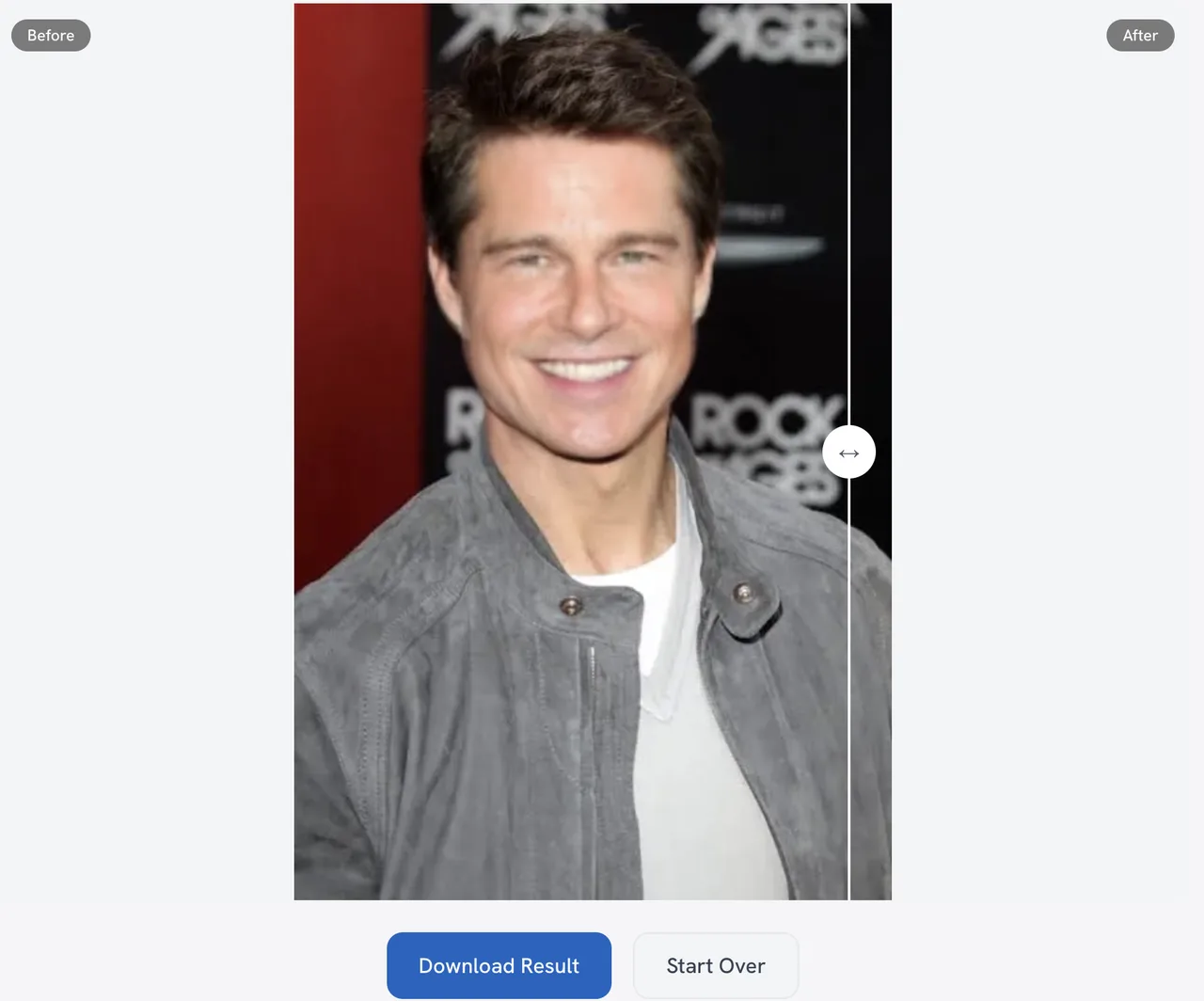
Swap a face from one photo into another online and save the result as an 8-bit RGB PNG. You provide two still images: Source Face supplies the facial identity, and Target Image provides the scene, pose, and background. Processing runs online on MiOffice servers, requiring an account sign-in and an active internet connection. Before downloading, use the before-and-after comparison to evaluate facial alignment, boundary blending, expressions, and overall dimensions.
The tool processes two still images online. If an input image exceeds 16,777,216 pixels, it is reduced proportionally before the swap. The tool maps the first detected face from the Source Face onto the leftmost detected face in the Target Image. When Enhance face quality is enabled, an additional restoration pass blends into the swapped face region according to your slider setting. If Upscale result to 4x resolution is turned on, a separate subsequent enlargement stage runs provided the target is within 2,000,000 pixels. The final composite downloads as an 8-bit RGB PNG still image.
When to use
- Placing a person's face into a single-subject stock photo or portrait when you have permission to edit both images.
- Testing character concepts, avatar designs, or composite portraits across still JPG, PNG, or WebP images.
- Fixing a photo with closed eyes or an awkward angle by substituting a clear, front-facing shot of the same person.
How to use
Sign in to your account, open Face Swap, and upload your Source Face photo. Choose a readable, well-lit, front-facing JPG, JPEG, PNG, or WebP image within the displayed 50 MB limit that you have permission to edit.
Choose your Target Image once the source photo loads. Pick an image up to 50 MB with a visible face. A photo with one subject gives you predictable replacement because the tool targets the leftmost detected face.
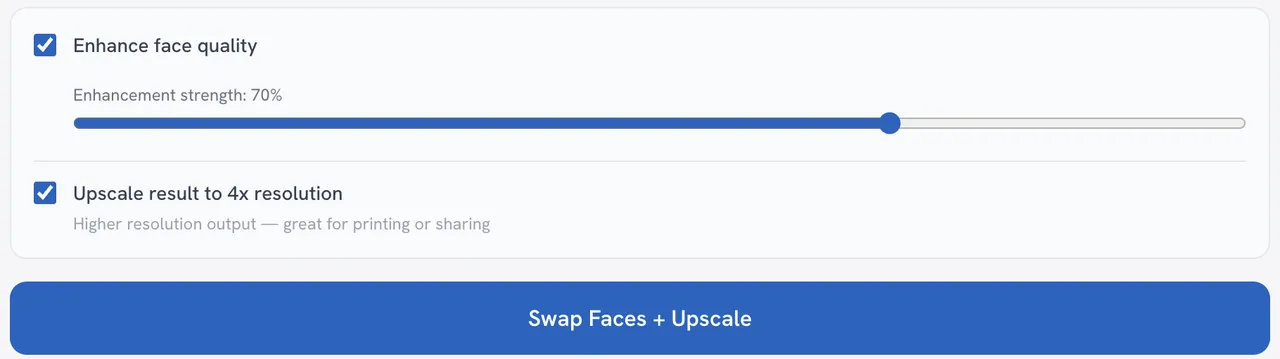
Review your settings. Enhance face quality is off by default; enable it to run an additional restoration pass on the swapped face, and adjust Enhancement strength between 0 and 1 (defaults to 0.7). Turn on Upscale result to 4x resolution only if you want an enlarged output.
Keep an active internet connection and click Swap Faces, or Swap Faces + Upscale if upscaling is enabled. Both photos are uploaded to run the swap online.
Inspect the Before/After comparison to check facial alignment, eye and mouth position, boundary edges, and dimensions. Download the 8-bit PNG result and keep your original photos. If an upscale-failure warning appears, your base swapped result remains available.
Keep both original photos. Enlargement does not guarantee more accurate facial detail; compare the downloaded image before sharing.
Settings reference
| Setting | Options | Default |
|---|---|---|
| Enhance face quality | Yes / No | No |
| Enhancement strength | 0 – 1 | 0.7 |
| Upscale result to 4x resolution | Yes / No | No |
Formats & limits
| Detail | Requirement |
|---|---|
| Input formats | JPG, JPEG, PNG, WebP |
| Output formats | PNG |
| Input codecs | Decodable JPEG, PNG or WebP still images; an extension alone does not establish that the image is complete and readable. |
| Output codecs | The face-swap result is PNG. The download uses a .png filename. |
| Bit depth | The swap handler converts the decoded images to RGB and returns an 8-bit PNG; HDR and original transparency preservation are not promised. |
| Technical requirements | A detectable face is needed in each photo., Input images above 16,777,216 pixels are reduced proportionally before swapping; the base result follows the processed target size., The optional browser upscaling path accepts at most 2,000,000 input pixels; it is a separate stage from the swap. |
Access & cost
| Detail | Requirement |
|---|---|
| Sign-in required | Yes |
| Internet connection required | Yes |
| Maximum file size | 50 MB |
| Limit scope | Two still images: one source and one target. The workspace displays up to 50 MB for each image (50 MiB, 52,428,800 bytes). This is not a batch or video workflow. |
| Plan limits | The registered format and image limits apply to this Face Swap workflow; dynamic pricing and entitlements are presented by the host product. |
Sign in and review the displayed credit charge before starting. Face Swap uses online AI credits; the on-device allowance and Day Pass do not cover this task. Review the updated charge when enabling face enhancement.
Examples & use cases
Digital Illustrator
Costumed fantasy portrait replacement with partial restoration blending
Needs to evaluate a portrait face swap onto a costumed fantasy character still, moderating the restoration pass to see if it avoids overly processed facial detail.
JPG to PNG
- Enhance face quality:
- Yes
- Enhancement strength:
- 0.4
- Upscale result to 4x resolution:
- No
- Enable Enhance face quality, then lower Enhancement strength from 0.7 to 0.4 to blend less restoration into the swapped face region.
- Leave Upscale result to 4x resolution off so processing skips the optional enlargement stage.
- In the Before/After view, inspect the face boundary and skin texture against the original target. If you want to compare enhancement settings, run a separate swap with enhancement off.
Expected outcome
A downloadable 8-bit RGB PNG still image combining the source facial features and the target character setting, with intermediate restoration blending.
Social Media Designer
Single-subject studio photo swap with optional 4× resolution enlargement
Wants to test swapping a model's portrait onto an 800×1200 promotional still and request a 4× enlargement for a header banner test.
PNG to PNG
- Enhance face quality:
- Yes
- Enhancement strength:
- 0.7
- Upscale result to 4x resolution:
- Yes
- Confirm that the target photo contains fewer than 2,000,000 pixels so it fits within the browser upscaling input limit.
- Enable Enhance face quality at the default 0.7 strength and enable Upscale result to 4x resolution.
- After processing, verify whether the upscale succeeded by confirming that the saved PNG measures 3200×4800 pixels and that no upscale failure message appeared.
Expected outcome
A downloadable 8-bit RGB PNG showing the swapped face, measuring 3200×4800 pixels if upscaling succeeds, or an 800×1200 base swap if upscaling fails.
Archival Photo Editor
Unenhanced swap for evaluating vintage portrait replacement
Needs to evaluate a face swap on a vintage-style portrait still without applying any smoothing restoration pass.
WebP to PNG
- Enhance face quality:
- No
- Upscale result to 4x resolution:
- No
- Keep Enhance face quality disabled so the tool skips the AI restoration pass.
- Leave Upscale result to 4x resolution off to skip enlargement. Inputs above 16,777,216 pixels are still reduced proportionally before swapping.
- Inspect the Before/After comparison for facial placement, edge boundaries, expression alignment and changes to the original photographic texture.
Expected outcome
A downloadable 8-bit RGB PNG still image integrating the source facial identity without an extra restoration pass.
More ways to use it
- Creative Producer: Needs to create an early concept proof of an actor's likeness in an approved single-subject costume photo before scheduling principal photography. An 8-bit PNG still image allowing the production team to inspect eye alignment, facial boundaries, and pose match. Enhance face quality: Yes, Enhancement strength: 0.5, Upscale result to 4x resolution: No.
- Graphic Designer: Needs to test face replacement on a single-subject stock photo for an avatar pitch while preserving standard processing without enlargement. A downloadable PNG still image ready for visual inspection of facial features and edge blending. Enhance face quality: No, Upscale result to 4x resolution: No.
Troubleshooting
The swapped face shows harsh boundary seams or looks mismatched against the target body.
Try this: Select source and target photos captured from comparable front-facing angles and lighting setups.
What to expect: Choosing photos with similar front-facing angles, perspective, and lighting helps the tool map landmarks cleanly and blend edges naturally.
A warning reports that the face swap completed but upscaling failed.
Try this: Upscale result to 4x resolution: No
What to expect: The completed base swap remains available as a downloadable PNG without blocking your workflow.
The wrong person's face was swapped in a photo with two or more people.
Try this: Crop or reframe the target image to isolate the single person you want to replace before uploading.
What to expect: Cropping to a single visible person ensures the swap applies to the intended subject, as the tool defaults to the leftmost detected face.
Privacy
Both photos are uploaded for online processing. Completed results may remain available in Tasks for later download; see the Privacy Policy at https://mioffice.ai/privacy for current retention details. Uploaded files are not used to train AI models.
Frequently asked questions
Can I choose which face changes in a group photo?
No. The workspace does not include a target-face selector. The tool replaces the leftmost detected face in the Target Image using the first detected face from the Source Face. To ensure the correct person is replaced, crop your target photo to a single subject before uploading.
Is face enhancement always applied?
No. Enhance face quality is turned off by default. When enabled, it runs an additional restoration pass over the swapped face region. You can adjust the Enhancement strength slider from 0 (retaining the unenhanced swap) to 1 (using the restored region), with a default starting value of 0.7.
What is the difference between face enhancement and 4× upscaling?
Enhance face quality applies an extra restoration pass to the swapped face region, whereas Upscale result to 4x resolution is an independent subsequent stage that requests quadrupled width and height. Both are off by default. If the 4× upscale stage fails, your completed base swap remains available to download.
Which image supplies the background?
The Target Image supplies the overall scene, body, clothing, and background. The Source Face photo supplies only the facial features mapped onto that target.
Why does a face swap look mismatched even with a clear source photo?
A clear source photo cannot correct for noticeable differences in head tilt, camera angle, facial expression, or lighting between the two pictures. For a more natural result, choose source and target photos captured with similar front-facing angles and lighting conditions.
What image formats and file limits are supported?
Face Swap accepts readable JPG, JPEG, PNG, and WebP files up to 50 MB each. Inputs larger than 16,777,216 pixels are reduced proportionally before swapping, and the final output is saved as an 8-bit RGB PNG still image.
Do I need an account to swap faces?
Yes. Face Swap processes files online on our servers, which requires an account sign-in and an active internet connection. It does not run locally on your device.
What happens to the photos I upload?
Your source and target photos are uploaded for online processing. Completed results may remain available in Tasks for later download. See the Privacy Policy at https://mioffice.ai/privacy for current retention details. Uploaded files are not used to train AI models.
Can I swap faces in a video or GIF?
No. This tool is built specifically for still image pairs. It accepts two photos (JPG, JPEG, PNG, or WebP) and produces a single PNG still image. It does not support video files, animated GIFs, or batch processing.
Do I need permission to use someone else’s photo?
Yes. Only upload and edit photos you have permission to use. When publishing or sharing altered images, clearly disclose that the photo has been digitally modified.
Do I need to download and install specialized software?
No software installation is required. Face Swap runs in your web browser. You only need an internet connection and an account sign-in to upload images and run the swap online.
How does AI face swap work?
The online tool uploads a Source Face and a Target Image, mapping the first detected face from the source onto the leftmost detected face in the target. It generates an 8-bit RGB PNG still image, with optional restoration blending and separate 4× upscaling if requested.