Overview
Create a headshot from a photo with a clearly visible face. Choose a style, background and output size, then review the generated PNG for your profile or team page. Online processing requires sign-in, an internet connection and credits.
The workflow starts with an uploaded photo and generates an AI interpretation of it. Description, Style, Gender, Background, Face Enhancement, and Output Size are available controls; review the result rather than assuming it preserves facial features or clothing exactly.
When to use
- Use this headshot generator when you have a photo with a clearly visible face and want a portrait to review for a profile, professional page, or team page.
- If you want to start with words instead of a photo, use Create an image from a description. This headshot workflow starts with an uploaded image.
How to use
Open AI Headshot Generator and sign in. Review the displayed credit cost before starting.
Choose one photo with a clearly visible face. Accepted formats are .jpg, .jpeg, .png, and .webp; the configured limit is one image, up to 25 MB. Check the workspace’s visible restrictions before continuing. In Description, enter details that matter to you, such as “Navy blazer, relaxed expression, soft lighting.” Under Style, choose Professional, Casual, Creative, or LinkedIn. Under Background, choose Studio Lighting, Office, Outdoor, or Gradient. Choose the Output Size you need; see the settings reference for dimensions. Gender offers Auto-Detect, Male, or Female. Face Enhancement is also an available control.
Choose Create Headshot. Compare the face, expression, and visible clothing with your intentions before choosing Download, when offered. Check the image at full size and at the size where it will appear; a small profile crop can hide details that are obvious in a larger portrait. If a downloadable output is offered, verify the downloaded file before using it.
Settings reference
| Setting | Options | Default |
|---|---|---|
| Description | Text | Empty |
| Style | professional: Professional casual: Casual creative: Creative linkedin: LinkedIn | professional |
| Gender | auto: Auto-Detect male: Male female: Female | auto |
| Background | studio: Studio Lighting office: Office outdoor: Outdoor gradient: Gradient | studio |
| Face Enhancement | 0 – 1 | 0.5 |
| Output Size | 512x512: Standard (512x512) 1024x1024: High Resolution (1024x1024) | 1024x1024 |
Formats & limits
| Detail | Requirement |
|---|---|
| Input formats | .jpg, .jpeg, .png, .webp |
| Output formats | PNG |
Upload one JPG, JPEG, PNG or WebP image up to 25 MB. Check the limit displayed when selecting your file.
Access & cost
| Detail | Requirement |
|---|---|
| On-device | Not available for this tool |
| Online processing | Sign-in required; Internet connection required |
Examples & use cases
A job seeker preparing a profile photo.
A LinkedIn profile portrait
They have a clear .jpg selfie and want a square portrait to review for LinkedIn. They need to check that the generated face still resembles them, including at thumbnail size.
.jpg to PNG
- Style:
- Background:
- studio
- Output Size:
- 512x512
- Description:
- Relaxed expression, soft lighting
- Choose LinkedIn under Style and Studio Lighting under Background to request that look. Select Standard (512x512) for a square profile image.
- Enter the expression and lighting details in Description. Compare the generated face with the source photo at full size and as a small profile thumbnail.
Expected outcome
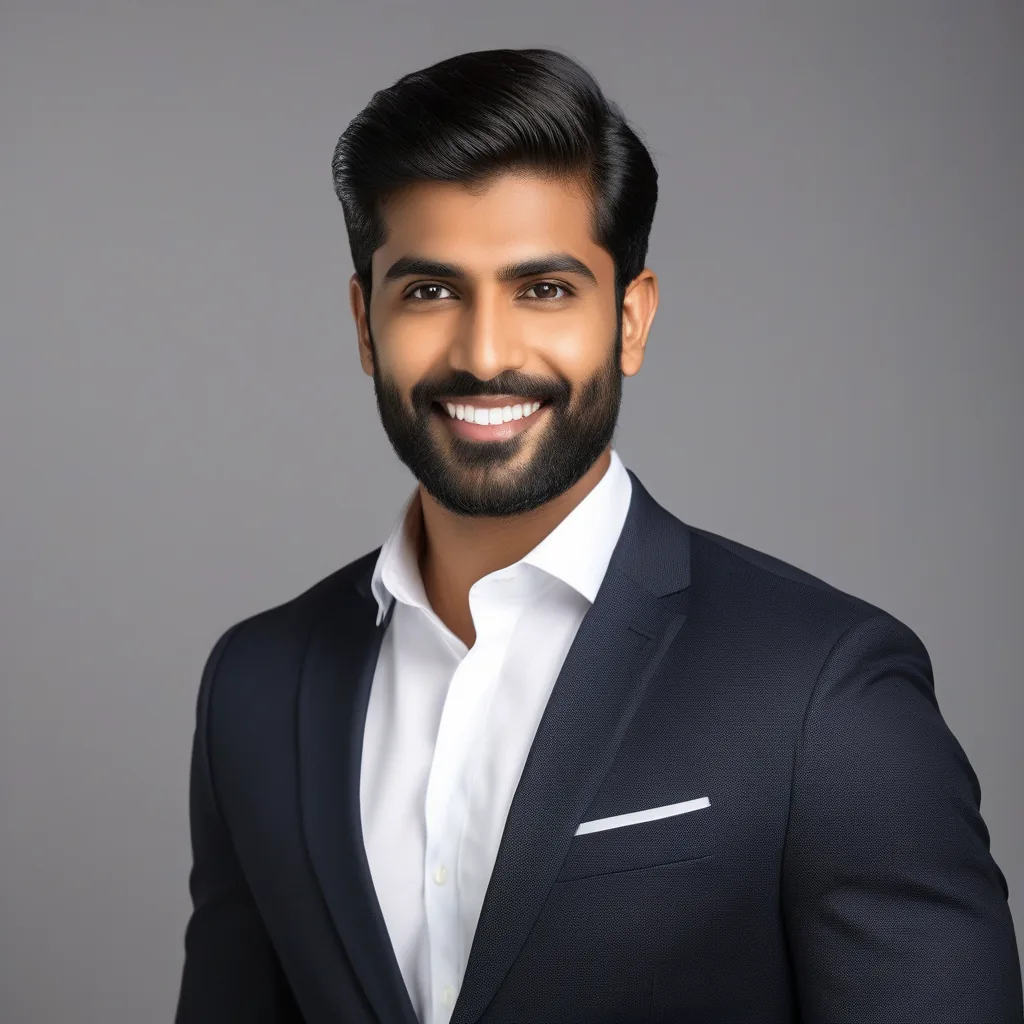
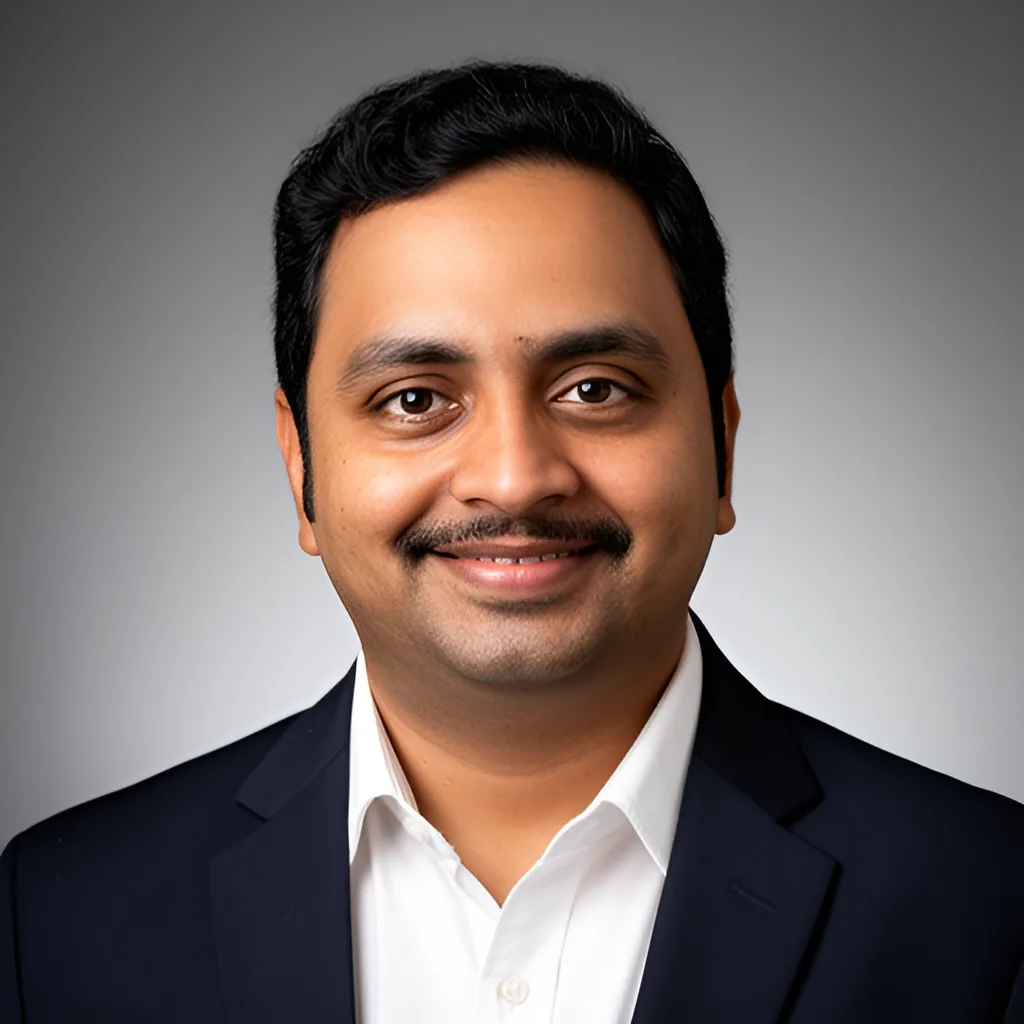
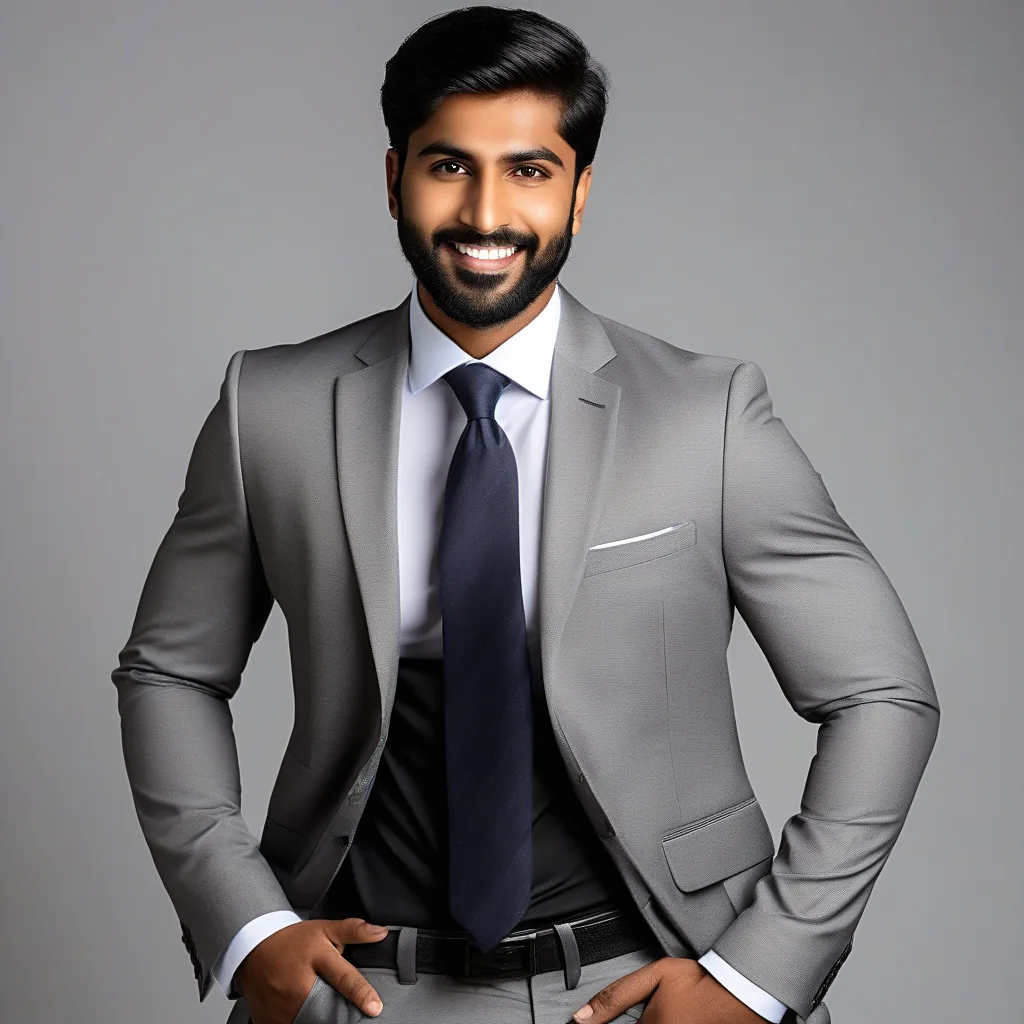
If processing succeeds, the expected deliverable is a PNG portrait. Check whether it matches the requested dimensions and whether the face still looks like you at thumbnail size before using it on a profile.
A small-business owner updating a company-page portrait.
A portrait for a company page
They have a .png photo with a clearly visible face and want to explore an office-style portrait. Before using it on the page, they need to check whether the generated clothing and expression fit their intent.
.png to PNG
- Style:
- professional
- Background:
- office
- Output Size:
- 1024x1024
- Description:
- Navy blazer, relaxed expression
- Choose Professional and Office to request that style and background. Select High Resolution (1024x1024) if that is the output size you need.
- Describe the clothing and expression you want to explore. Compare the result with the source photo and check the visible clothing before using it on the company page.
Expected outcome
A successful run is configured to produce a PNG portrait. Check its dimensions, and inspect whether the face, expression, and clothing suit the company page; don’t assume they’re preserved exactly.
A team member preparing an individual portrait for a team page.
An approachable team-page portrait
They have a .webp image with a clearly visible face and want to explore a casual portrait against an outdoor background. They need to check whether the face and expression remain recognizable and suit a small team-page crop.
.webp to PNG
- Style:
- casual
- Background:
- outdoor
- Output Size:
- 512x512
- Description:
- Approachable expression
- Choose Casual and Outdoor to request that combination, and Standard (512x512) for a square portrait.
- Compare the face and expression with the source, then view the PNG at the size it will have on the team page.
Expected outcome
The configured output is a PNG portrait if processing succeeds. Check the face and expression at full size and in the intended crop before using it on the team page.
More ways to use it
- A professional updating a personal profile.: They want to create a portrait from their own photo and compare the generated face, expression, and clothing with their intended appearance before choosing a profile image. If processing succeeds, the expected deliverable is a PNG to inspect at full size and as a small profile thumbnail before use. Style: linkedin, Background: studio.
- A team member contributing an individual portrait to a company page.: They need a portrait from one clear source photo. The tool accepts one image at a time, so each person’s photo must be handled separately. A successful run provides a PNG portrait to check against the intended page crop and the person’s actual appearance. Style: professional, Background: office.
Troubleshooting
The workspace does not accept the selected photo.
Try this: Check that you selected one .jpg, .jpeg, .png, or .webp image, that it is within the configured 25 MB limit, and that it meets the restrictions shown in the workspace.
What to expect: The selected file matches the declared input formats, one-image limit, and configured size limit; the workspace’s visible restrictions still apply.
The generated portrait does not look like the person in the source photo.
Try this: Try a different source photo with a clearly visible face or revise Description. Generate another result and compare it with the source.
What to expect: A different source photo or description gives you another generated result to compare; the portrait may still change facial features or clothing.
Privacy
Online processing uploads files. Completed results may remain available for later download. See https://mioffice.ai/privacy for current file-handling and retention details. Check the processing mode before starting.
Frequently asked questions
Can I upload several team photos together?
No. The configured limit is one image at a time. Work through each person’s photo separately.
Is a text description enough?
No. This headshot workflow starts with an uploaded photo. You can add details in Description, but for an image that starts from text alone, use Create an image from a description.
What should I check before using an AI headshot on my profile?
Check that the result still resembles you and that the eyes, teeth, hair, glasses, and clothing look natural. View it at full size and as a small profile thumbnail. Choose an image that represents your appearance accurately, not simply the most polished-looking result.
What kind of photo should I upload?
Choose one .jpg, .jpeg, .png, or .webp image with a clearly visible face. A small or obscured subject gives you less to work with. The configured file limit is 25 MB.
Which image formats does the headshot generator accept, and what does it produce?
Upload JPG, JPEG, PNG or WebP. The output is PNG; choose its dimensions with Output Size.
Can I choose a style, background, or other details for my headshot?
Yes. Style offers Professional, Casual, Creative, and LinkedIn, while Background offers Studio Lighting, Office, Outdoor, and Gradient. You can also enter details in Description. Inspect the generated portrait to see whether it matches your intended look.
Will the headshot still look like me?
It may not preserve facial features or clothing exactly; treat the result as a generated interpretation of your photo. Compare the face, expression, and clothing with the source. If it no longer looks like you, try a different clear source photo or revise Description, then review the new result.
Are AI headshots good enough for LinkedIn?
LinkedIn is one of the available Style choices, but that doesn’t guarantee a result will suit your profile. Check that the image represents you accurately, inspect the face and clothing, and preview it at thumbnail size before using it.
Can I make a headshot from a group photo?
The configured limit is one image per generation, and the workflow recommends a photo with a clearly visible face. If the person is small or obscured in a group shot, choose a clearer individual photo instead.
How many headshots does the tool create from one upload?
Upload one source photo per run. Review the generated PNG offered in the workspace before downloading; there is no batch-upload control for team photos.
What happens to uploaded photos and generated results?
Online processing uploads files. Completed results may remain available for later download. See https://mioffice.ai/privacy for current file-handling and retention details. Check the processing mode before starting.
Do I need an account to use the headshot generator?
Yes. Headshot generation runs online and requires sign-in, an internet connection and credits. Review the displayed cost before starting.
Can I choose the output size?
Yes. Output Size offers Standard (512x512) and High Resolution (1024x1024). Choose the size you need, then check the generated image’s dimensions and view it at the size where it will appear.
Can I create a professional headshot from a selfie?
The workflow accepts a photo as its starting point. Choose Professional under Style if that is the look you want to explore, then review the generated face, expression, and clothing against your source before using it.
What Gender choices are available?
Gender offers Auto-Detect, Male, and Female. Review the generated portrait to decide whether it suits your intended result.