Overview
Need a cutout for a listing or design? Remove the background from a JPG, JPEG, PNG, or WebP image, then check the subject edges and downloaded file. Choose Transparent to place the subject over another design, or White or Black to request a plain backdrop. This browser-based workspace requires sign-in and an internet connection. It supports on-device and cloud processing; the available path depends on device capabilities and service availability. On-device processing keeps the image on your device, while cloud processing uploads it. Start with one image, inspect the result, then process up to 10 images in a batch if needed. Each related tool shows its supported inputs and processing options before you start.
Remove Background processes still images to isolate a subject. The Background setting requests a transparent, white, or black result. Edge Smoothing ranges from 0 to 3, defaults to 1, and adjusts the mask transition where supported. Output Format offers PNG, WebP, or JPG and defaults to PNG; it’s a request, so check the delivered file type. PNG and WebP can preserve transparency; JPEG can’t. Check the delivered background, transparency, and fine edges against the original.
When to use
- Prepare a product or portrait cutout to place over another design. Choose Transparent, then check the downloaded file’s transparency and the subject outline.
- Request a plain white or black backdrop when a solid background suits your image. Check the delivered background before using it.
- Use this tool to separate a foreground subject from its surroundings. If you want to remove one object while keeping the rest of the background, use an object-removal workflow instead.
How to use
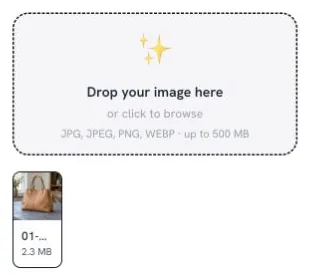
Open Remove Background and sign in. Add readable JPG, JPEG, PNG, or WebP images. The picker allows up to 10 files and displays a 500 MB (500 MiB) limit per image. Start with one image so you can inspect the cutout before processing a batch. Remove Background is disabled until files are loaded.
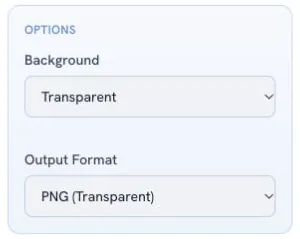
Review Options. Under Background, choose Transparent for a cutout to place in another design, or White or Black to request a plain backdrop. Edge Smoothing ranges from 0 to 3 and defaults to 1; where supported, it adjusts the mask transition. Compare fine edges with the original. Under Output Format, request PNG or WebP if you need a format that can preserve transparency, or JPG if you don’t. The format choice is a request, so check the downloaded file type and transparency.
Keep an internet connection active and select Remove Background after checking the available settings and workspace requirements. Device capabilities and service availability determine the processing path. On-device processing keeps the image on your device; cloud processing uploads it.
Inspect each result in Output and compare it with the original. Check the subject outline, hair or fur, handles, gaps, fine details, leftover background, and halos. Auto-download is enabled initially. Open the downloaded result in the application where you plan to use it. For a transparent cutout, place it over a contrasting background to check transparency and look for missing edges or leftover areas. Verify the saved file type and keep the original.
Settings reference
| Setting | Options | Default |
|---|---|---|
| Background | transparent: Transparent: request a cutout to composite on another design; inspect alpha. #ffffff: White: request a white backdrop; inspect the delivered background. #000000: Black: request a black backdrop; inspect the delivered background. | transparent |
| Edge Smoothing | 0 – 3 | 1 |
| Output Format | png: PNG (Transparent): alpha-capable format, requested by default. webp: WebP (Smaller): alpha-capable format; smaller size is not guaranteed for every result. jpg: JPG (White BG): JPEG cannot preserve transparency; verify actual delivered type and backdrop. | png |
Formats & limits
| Detail | Requirement |
|---|---|
| Input formats | JPG, JPEG, PNG, WebP |
| Output formats | PNG, WebP, JPG |
| Input codecs | Readable JPEG, PNG or WebP still images. HEIC and video are not accepted by the picker. |
| Output codecs | Choose PNG or WebP to preserve transparency, or JPG for an opaque image. Inspect the downloaded cutout and its edges before use. |
| Bit depth | No selectable bit-depth, HDR or exact color-profile preservation guarantee is documented. |
| Technical requirements | Readable JPG, JPEG, PNG or WebP images, up to 500 MB per file and 10 files per batch., Supports on-device and cloud processing; cloud processing uploads images., Inspect the actual output format and transparency; outputs can vary between processing paths. |
Access & cost
| Detail | Requirement |
|---|---|
| Sign-in required | Yes |
| Internet connection required | Yes |
| Maximum file size | 500 MB |
| Limit scope | Remove Background: up to 500 MB per image (500 MiB as enforced by the picker) and up to 10 files per batch. |
| Plan limits | The supported file limit is 500 MB per image and 10 images per batch. Use the current workspace for account and processing availability. |
Remove Background supports on-device processing where available, with cloud processing depending on the available path. AI Background Remover Pro uses cloud GPU processing. On-device processing does not by itself imply free use or guest access; check the requirements shown in the workspace.
Examples & use cases
An online store merchandiser preparing a product photo for a promotional design
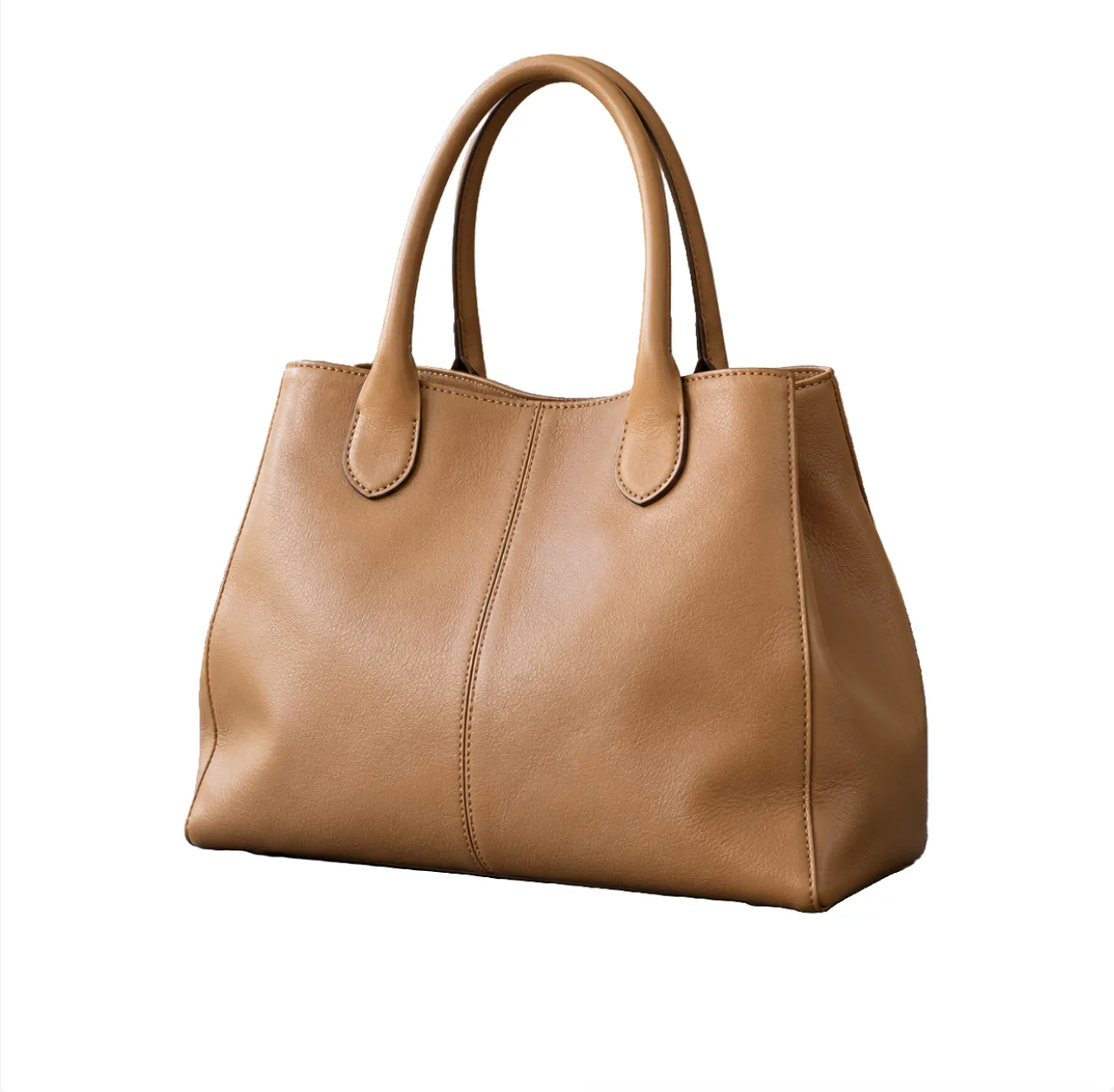
A handbag cutout for a product layout
A handbag photo has a textured tabletop behind it, and the merchandiser wants to place the subject over a separate layout. The handles and gaps around them need a close check.
JPG to PNG
- Background:
- transparent
- Edge Smoothing:
- 1
- Output Format:
- png
- Choose Transparent because the handbag will be placed over another design.
- Start with the default Edge Smoothing value of 1. Where supported, it adjusts the mask transition; it doesn’t guarantee better handles or seams.
- Request PNG because it can preserve transparency. Check the downloaded file type and transparency, then inspect the handles and gaps over a contrasting background.
Expected outcome
A processed handbag image to check for transparency and edge details before using it in the layout.
A marketplace seller preparing an image of computer accessories
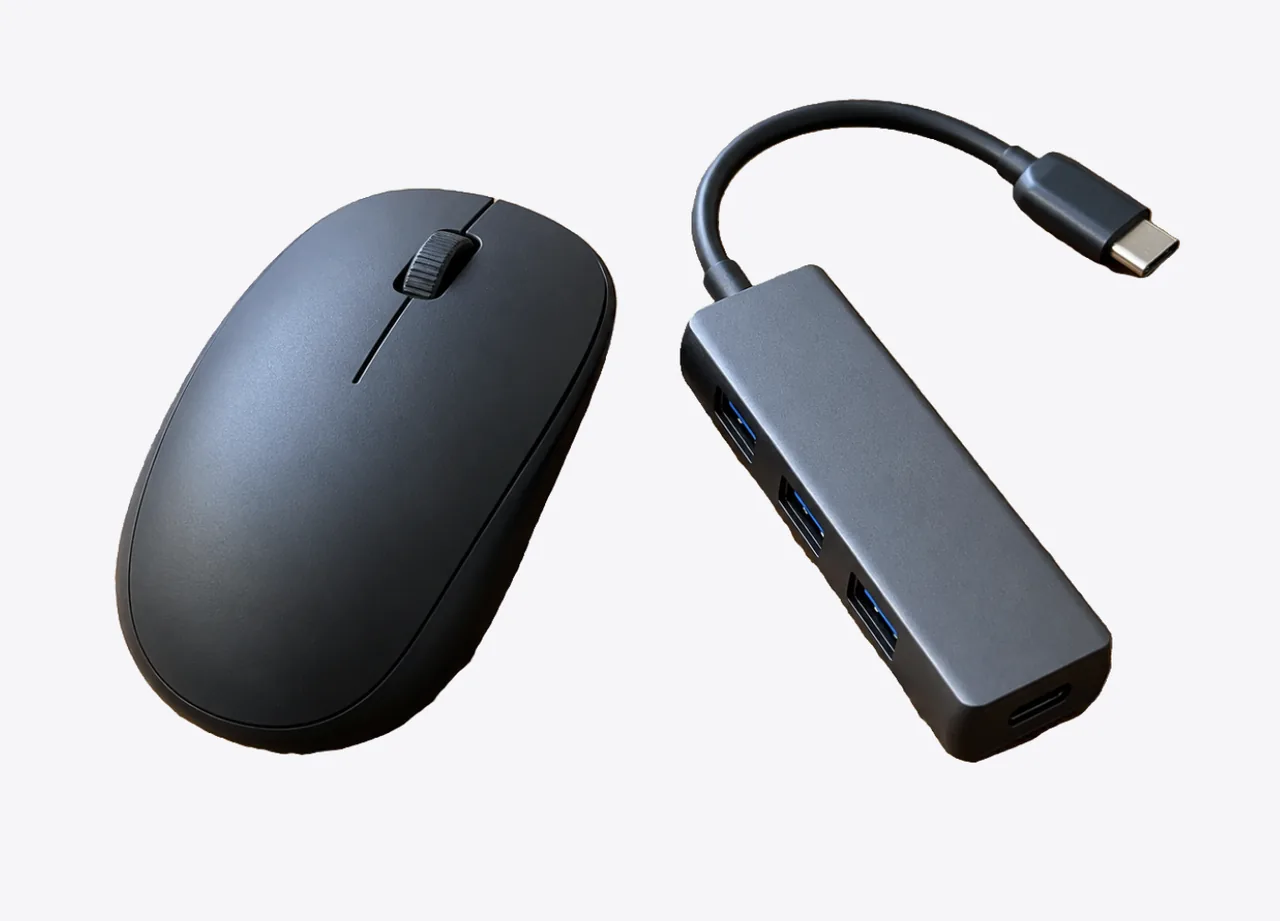
A white-backdrop request for catalog photography
An accessories photo has a scuffed tabletop, and the seller wants a plain white backdrop. Small gaps between the accessories and their outer edges need checking after processing.
PNG to JPG
- Background:
- #ffffff
- Edge Smoothing:
- 0
- Output Format:
- jpg
- Choose White under Background to request a plain backdrop rather than a transparent cutout.
- Choose Edge Smoothing 0 to request no extra smoothing. Check the accessories’ boundaries and gaps; the setting doesn’t guarantee a particular edge.
- Request JPG because this use doesn’t require transparency. Check the actual file type and inspect the delivered background and product edges before using the image.
Expected outcome
A processed accessories image to check for the requested white backdrop, saved format, and visible edge or gap issues.
A graphic designer preparing a staff portrait for an identification badge
An outdoor portrait cutout for a badge design
A portrait has trees behind the person and fine hair against the background. The designer wants a transparent subject image for a badge layout and needs to check the hairline for missing detail or halos.
WebP to WebP
- Background:
- transparent
- Edge Smoothing:
- 2
- Output Format:
- webp
- Choose Transparent for the planned badge-layout composite.
- Try Edge Smoothing 2 to adjust the mask transition where supported. Higher values aren’t guaranteed to preserve more hair detail, so compare the hairline with the original.
- Request WebP, which can preserve transparency. Check the downloaded file type and transparency, then inspect the hairline over a contrasting background before placing it in the badge design.
Expected outcome
A processed portrait to review for its actual file type, transparency, hair detail, and background remnants before use.
More ways to use it
- A small-shop owner preparing product photos: The owner needs to separate an item from its surroundings for a listing image. The subject has small gaps and areas close in color to the background, so the cutout needs careful review. A processed image with a white background requested. Check the delivered backdrop, item outline, and gaps against the original before using it in a listing. Background: #ffffff, Edge Smoothing: 1, Output Format: png.
- A designer assembling a layered campaign graphic: The designer needs to place a person or object from an existing photo over a new layout. This tool offers transparent, white, or black backgrounds, not a custom background image or color. A processed cutout to check for transparency and edge issues, then composite in an image editor if it suits the layout. Background: transparent, Edge Smoothing: 1, Output Format: png.


Troubleshooting
The result appears to have a solid background instead of transparency.
Try this: Choose Transparent under Background and request PNG or WebP under Output Format. Check the downloaded file type and transparency over a contrasting background.
What to expect: Transparent requests a cutout, and PNG or WebP can preserve transparency. Some viewers show transparency on a white canvas, and JPG can’t carry transparency.
Fine hair, fur, handles, or gaps look different from the original, or the result has leftover background or halos.
Try this: Compare the result with the original. If you adjust Edge Smoothing, inspect the fine edges again.
What to expect: Where supported, Edge Smoothing adjusts the mask transition. Higher values aren’t guaranteed to improve fine detail. Missing details or leftover background may need manual cleanup before use.
The picker doesn’t accept the image.
Try this: Check that the file is a readable JPG, JPEG, PNG, or WebP and is within the displayed per-image limit. Convert HEIC to an accepted format before selecting it.
What to expect: The picker supports readable JPG, JPEG, PNG, or WebP still images, up to 500 MB (500 MiB) per image. HEIC and video aren’t accepted.
Privacy
On-device processing keeps the image on your device; cloud processing uploads it. Completed cloud results may remain available in Tasks for later download. See the Privacy Policy at https://mioffice.ai/privacy for current retention details. Uploaded files are not used to train AI models.
Frequently asked questions
Can I process several images at once?
Yes. The picker allows up to 10 files per batch, with a displayed limit of 500 MB (500 MiB) per image. Start with one image and inspect the result before processing a larger batch, then review each cutout before using it.
Can I remove backgrounds from videos using this tool?
No. Remove Background processes still images in JPG, JPEG, PNG, or WebP formats; its picker doesn’t accept video. For a short clip, use AI Video Background Remover.
Can I remove backgrounds on mobile devices as well as desktop computers?
The browser-based workspace supports on-device and cloud processing, with availability depending on device capabilities and service availability. You’ll need to sign in and stay connected to the internet to access the workspace.
Can I replace the background with a custom photo or scene?
This tool offers Transparent, White, or Black; it has no custom background-image or custom-color control. To use another scene, request Transparent, check the downloaded file’s transparency, and composite the cutout over your chosen background in an image editor.
Can I upload a HEIC photo directly from an iPhone?
No. HEIC isn’t an accepted input format. Convert the photo to JPG, PNG, or WebP first, then select the converted file.
Can I use this tool to create solid white backgrounds for marketplace listings?
Choose White under Background to request a white backdrop. Inspect the delivered background and the product’s edges and gaps before using the image; the setting doesn’t guarantee a particular result or marketplace compliance.
Does removing the background reduce image resolution or quality?
Unchanged dimensions or preservation of every fine detail aren’t guaranteed. Compare the downloaded result with the original, paying attention to hair, fur, thin edges, gaps, and missing details before reuse.
How do I make an image background transparent with this tool?
Choose Transparent under Background and PNG or WebP under Output Format. After processing, check the downloaded image over a contrasting background.
How does the tool handle difficult boundaries like curly hair, fur, or semi-transparent edges?
Where supported, Edge Smoothing adjusts the mask transition, but it isn’t guaranteed to preserve fine detail or fix difficult edges. Complex overlaps, fine detail, transparent objects, and similar foreground and background colors can be difficult. Compare hair, fur, gaps, and halos with the original before using the cutout.
Is my uploaded image data kept private and secure?
On-device processing keeps the image on your device; cloud processing uploads it. Completed cloud results may remain available in Tasks for later download. See the Privacy Policy at https://mioffice.ai/privacy for current retention details. Uploaded files are not used to train AI models.
What image formats and file sizes can I upload?
The picker accepts readable JPG, JPEG, PNG, and WebP still images, with a displayed limit of 500 MB (500 MiB) per image and up to 10 files per batch. HEIC and video aren’t accepted.
What should I do if I only want to remove a specific object rather than the entire background?
Remove Background isolates the foreground from its surroundings. If you want to remove a particular object while keeping the surrounding background, use Remove Objects from Photos Online and paint over the object.
Which image formats support transparent backgrounds after export?
PNG and WebP can preserve transparency; JPG cannot. Choose the output format before processing and check the saved image. A transparent background becomes white when exported as JPG.
Why does a transparent image look white or black in another app?
Some viewers display transparency against a plain white or black canvas. Open the file over a contrasting background to check, and confirm that the downloaded file is PNG or WebP rather than JPG, which can’t preserve transparency.
Can I use Remove Background without signing in?
No. Sign-in is required for this workspace, and an internet connection is required to access it.
Can I upload a HEIC photo?
Convert it to JPG, PNG or WebP first. HEIC is not one of this tool’s accepted input formats.
Can I process several images?
Yes. You can add up to 10 files. Review each cutout before using the batch.
Why does a transparent image look white in another app?
Some viewers display transparency on a white canvas. Check the file over a colored background before assuming removal failed. Also check that the saved format supports transparency; converting a transparent result to JPEG adds a solid background.